
Turn a PDF into a quiz
Give QuizPaper a PDF, such as lecture notes, a textbook chapter or a course module, and it writes questions from it. Questions come in study sets of 20. By default a set has 17 multiple-choice questions and 3 essay questions, and every answer is traced back to the page it came from.
No sound: follow the captions.
Transcript
Tap the green plus on the Home screen, tap Choose PDF and pick the file you study from. Tap Upload document and QuizPaper reads it. When the document page says there are no questions yet, tap Generate questions. In this recording automatic generation is switched off, so the questions are started by hand; with it on, they start by themselves after the upload. Your study set is written in a minute or two. When it appears, tap Start to practise.
Make your first study sets
Section titled “Make your first study sets”-
Choose your PDF. On the Home screen, tap the green plus button. Tap Choose PDF and pick the file you study from.
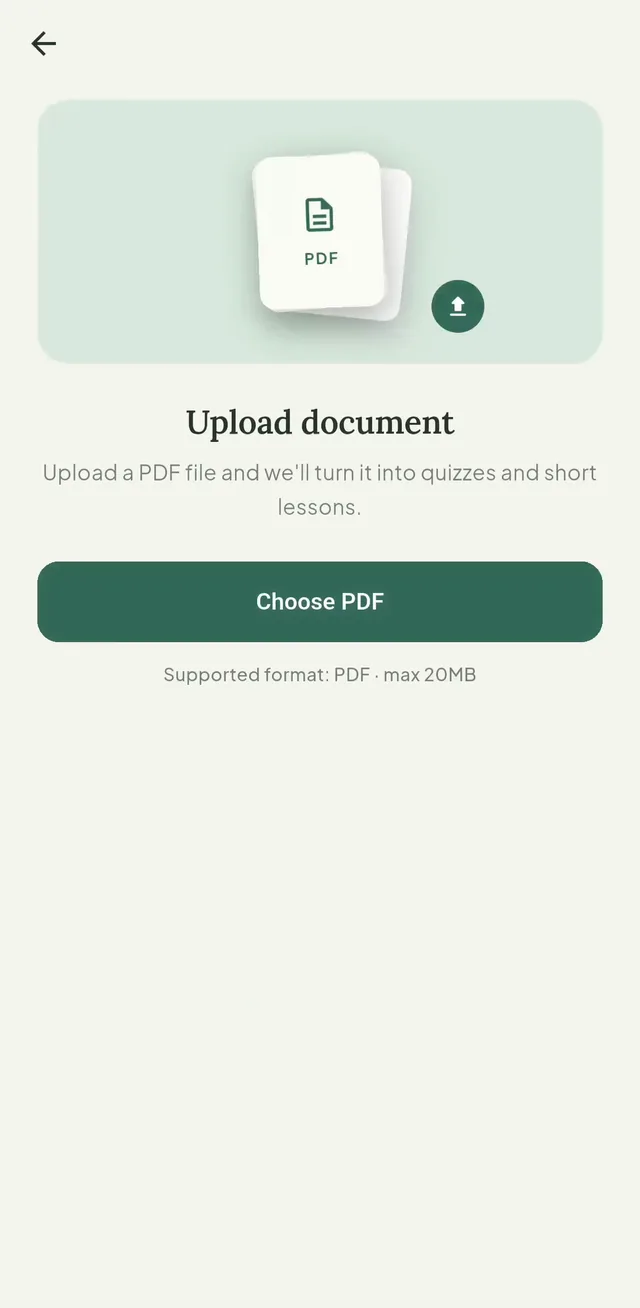
Choose the PDF you study from. -
Upload it. Tap Upload document.
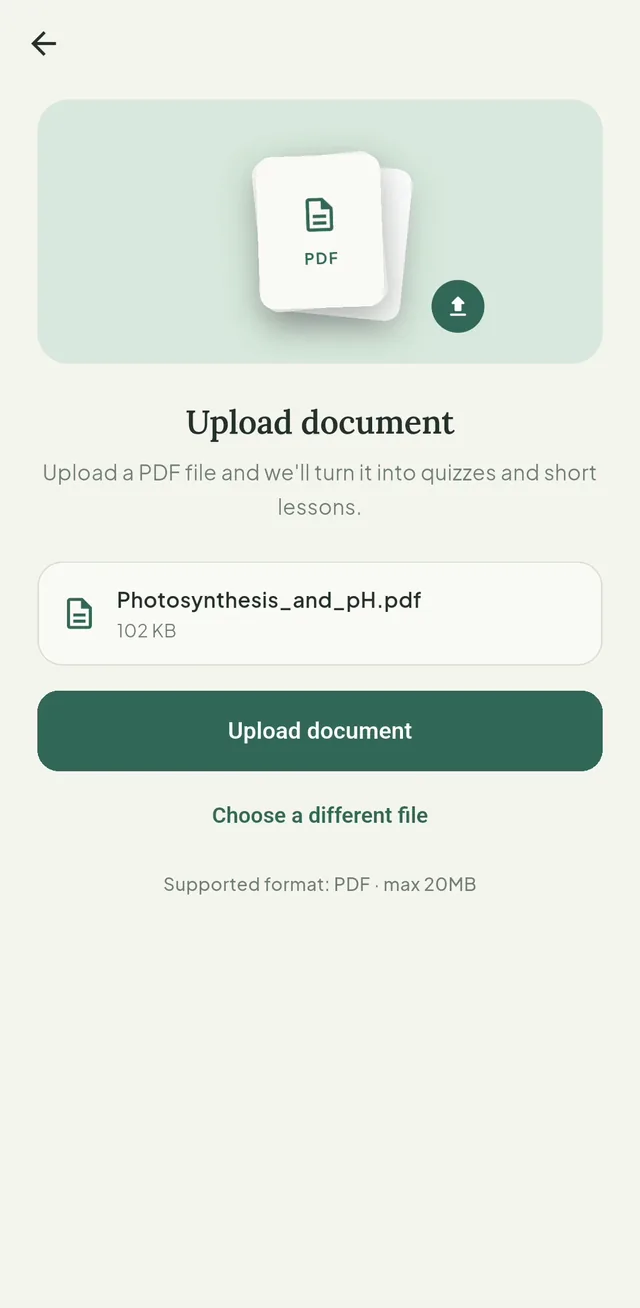
Your PDF is chosen. Tap Upload document. -
Wait for the questions. QuizPaper reads your document, then writes your first study sets one after another. The first time you make questions from a document you get two study sets.
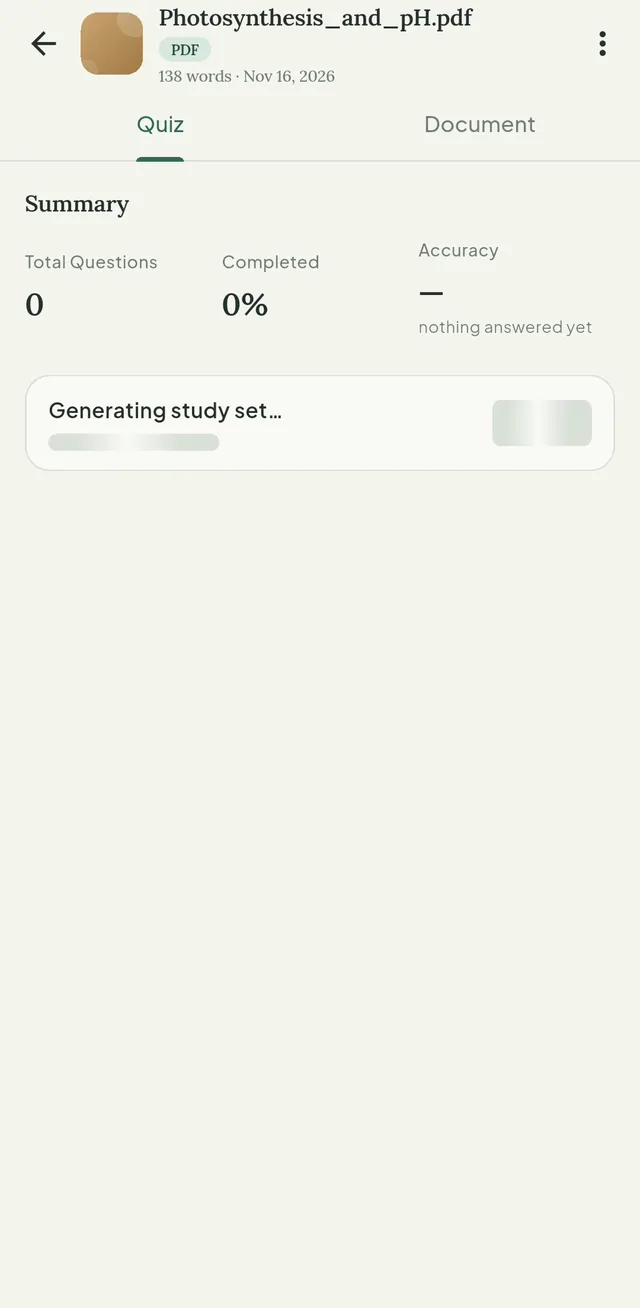
QuizPaper reads the document, then writes the questions. -
Open a study set and tap Start. Your new study set is listed on the document page.
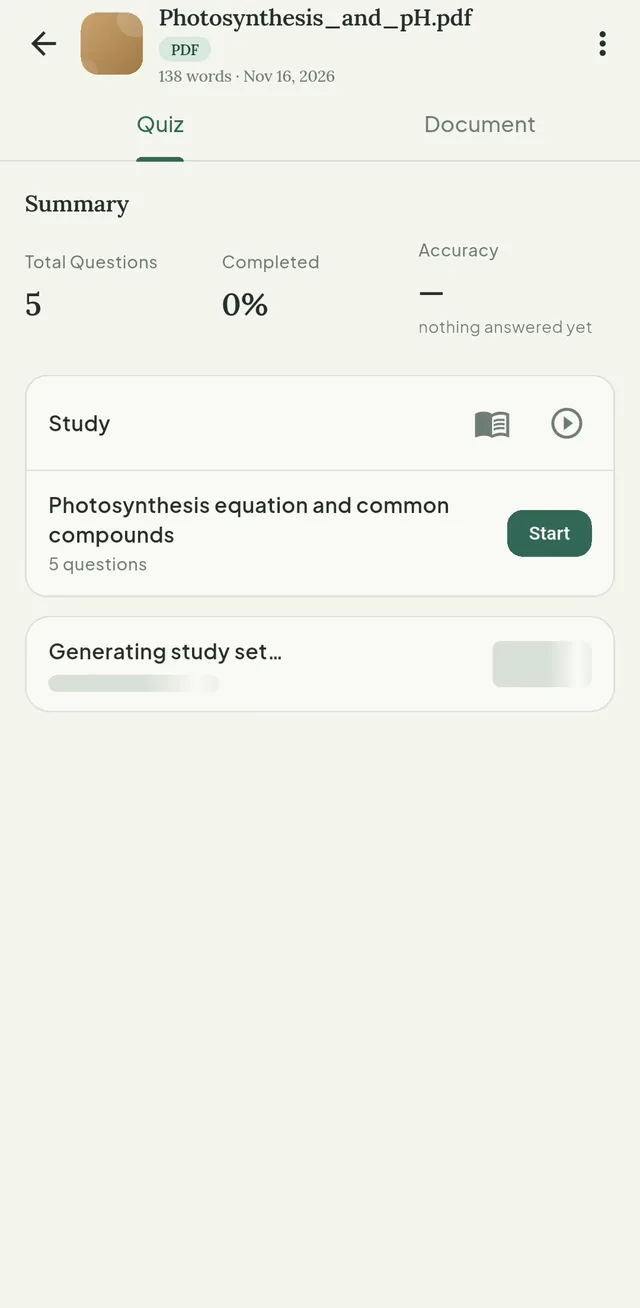
Your study set is ready. Tap Start. -
Answer. After every answer you see whether it was right, the reason, and where in your document it comes from.
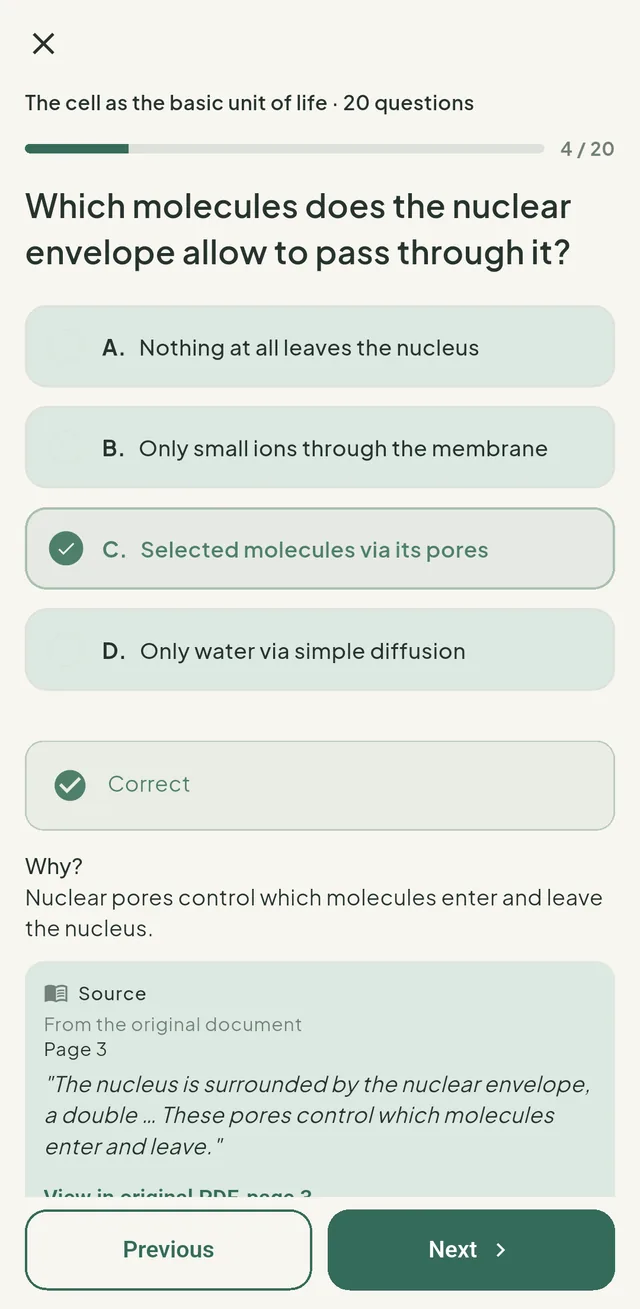
After each answer you see why, and where in your document it comes from. -
Finish the set. You see your score. To go over only the questions you missed, see Practise only the questions you missed.
Make more questions
Section titled “Make more questions”Tap Generate more questions on the document page. Each tap adds one more study set. While a document has three study sets or fewer you can add more straight away. After that, finish your study sets first, so the new questions are about what you have not practised yet.
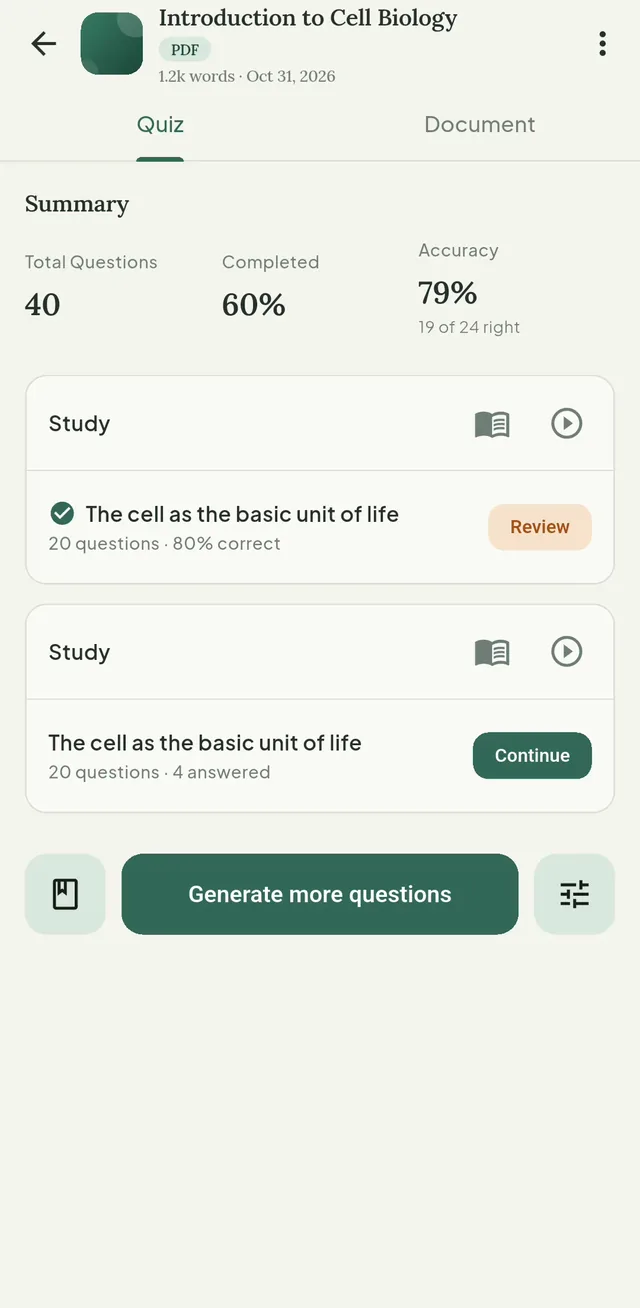
To choose how many multiple-choice and essay questions a study set has, see Choose how many multiple-choice and essay questions.