
Listen to an audio lesson
A lesson explains what one study set is about, in a short spoken talk made from your own document. Listen first, then practise.
No sound: follow the captions.
Transcript
On the document page, every study set has a Study row. Tap the play button to start its lesson. The first time, QuizPaper writes the lesson, so it takes a moment. A voice reads the lesson while the screen shows the key points. Tap Control to change the speed, from half speed to double, and to choose the voice that reads.
Play a lesson
Section titled “Play a lesson”-
Find the study set. On the document page, every study set card has a Study row with two buttons: a book, which opens exactly the pages that set’s questions are based on, and a play button for the lesson.
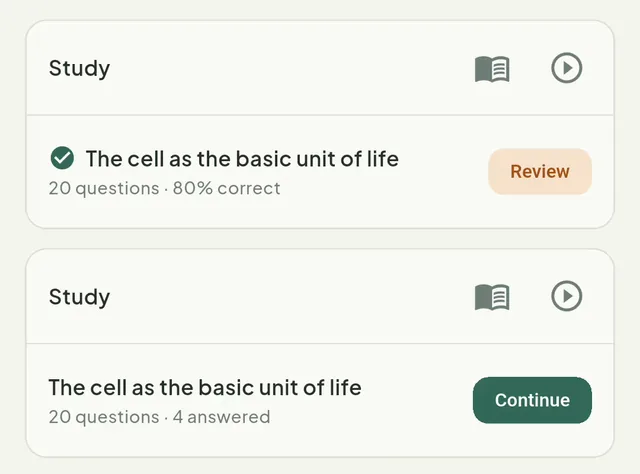
Every study set has a Study row: the book opens its pages, the play button starts the lesson. -
Tap play. The first time you play a lesson, QuizPaper writes it for that study set, so it takes a moment. After that it opens straight away.
-
Listen. The screen shows the key points while a voice reads the lesson, with subtitles underneath. Use the bar at the bottom to play, pause and move through the lesson.
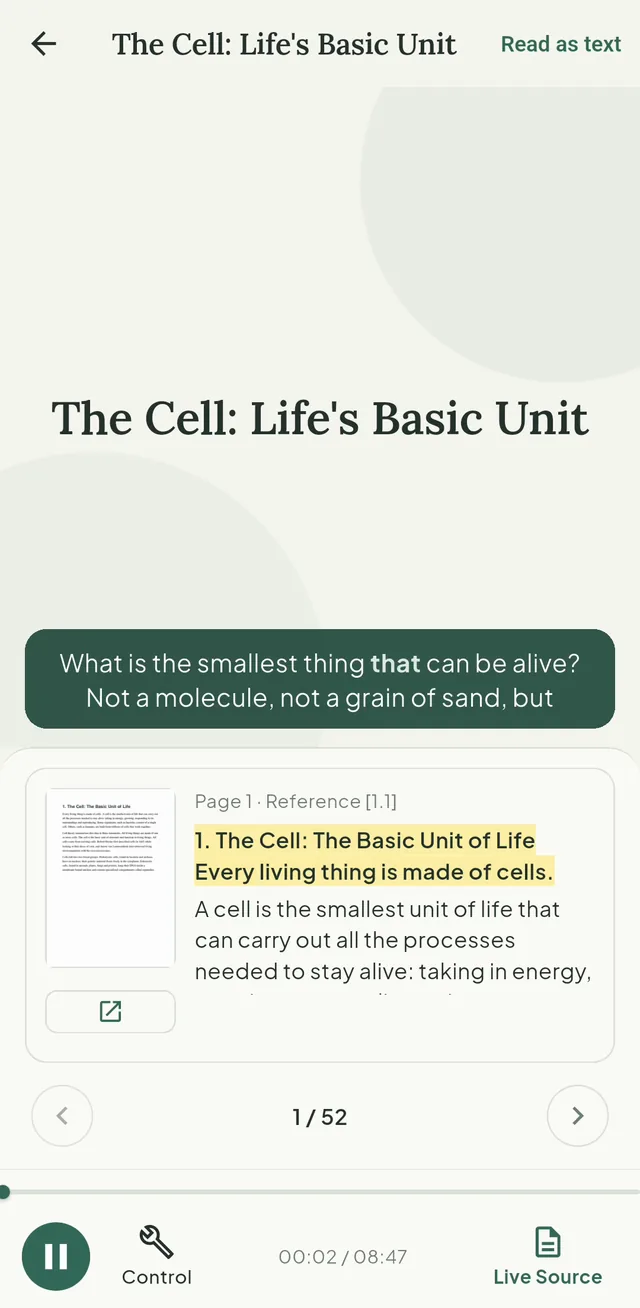
The lesson reads while the screen shows the key points.
Follow the live source
Section titled “Follow the live source”Tap Live Source in the bottom bar. The panel shows the text of your document and follows the sentence that is being read, so you can see exactly where each part of the lesson comes from.
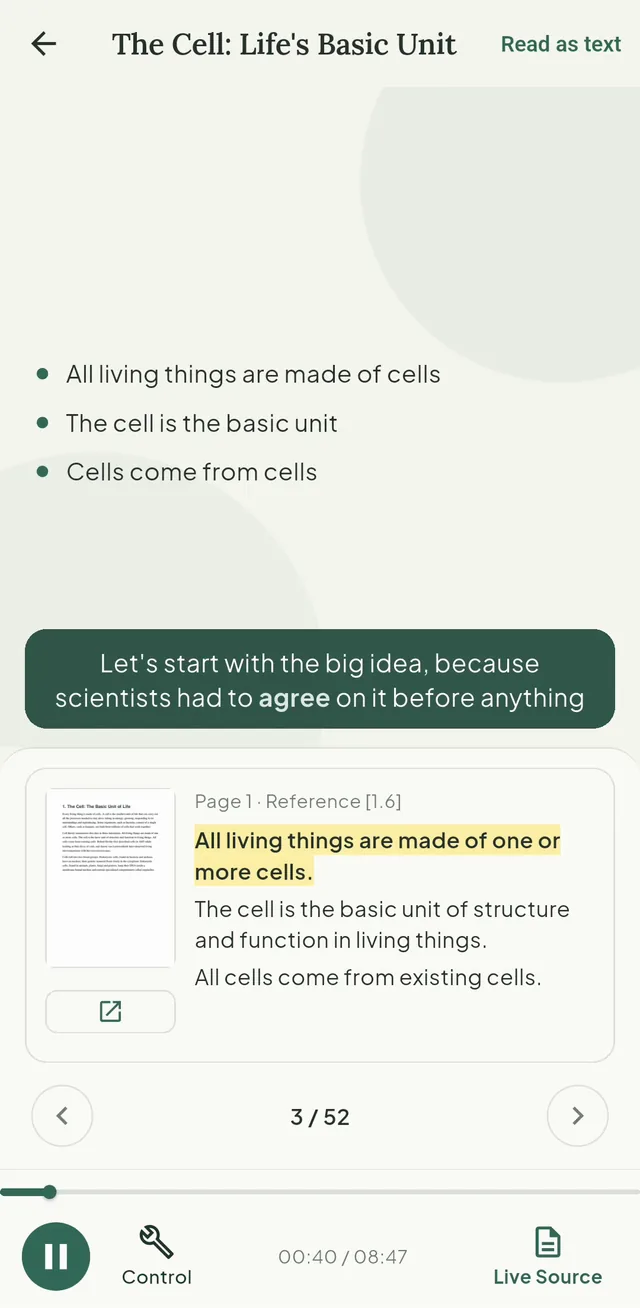
Change the speed, voice and subtitles
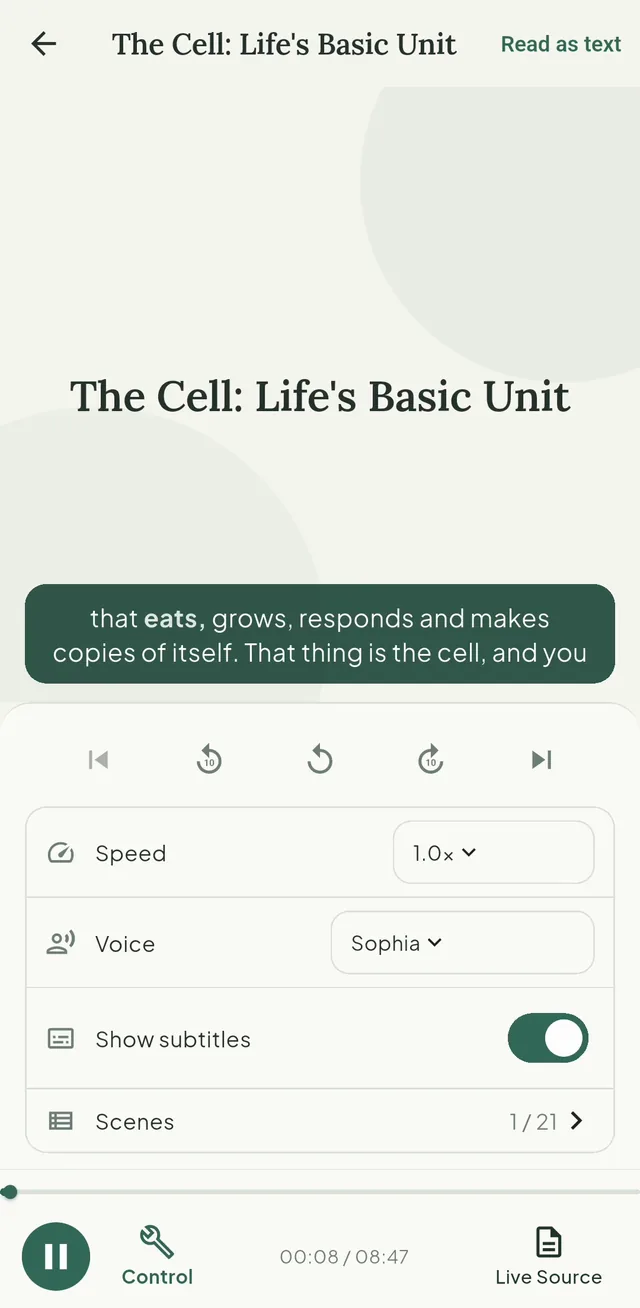
Section titled “Change the speed, voice and subtitles”Tap Control in the bottom bar to open the settings:
- Speed from 0.5× to 2×.
- Voice to choose the voice that reads the lesson.
- Show subtitles turns the subtitles on or off.
- Buttons to jump back or forward by 10 seconds, and to move to the previous or next part of the lesson.
- Scenes lists the parts of the lesson, so you can jump to any of them.
If the document changed after a lesson was made, or the last attempt to remake it did not work, the lesson screen shows a notice with a Make it again button. The earlier lesson keeps playing until you use it.